4. Medications and intakes
There are two separate things here:
- A medication is the thing itself — name, dosage, and optionally a daily reminder. You set it up once.
- An intake is one moment when you actually took it. You log those as you go.
Setting up a medication
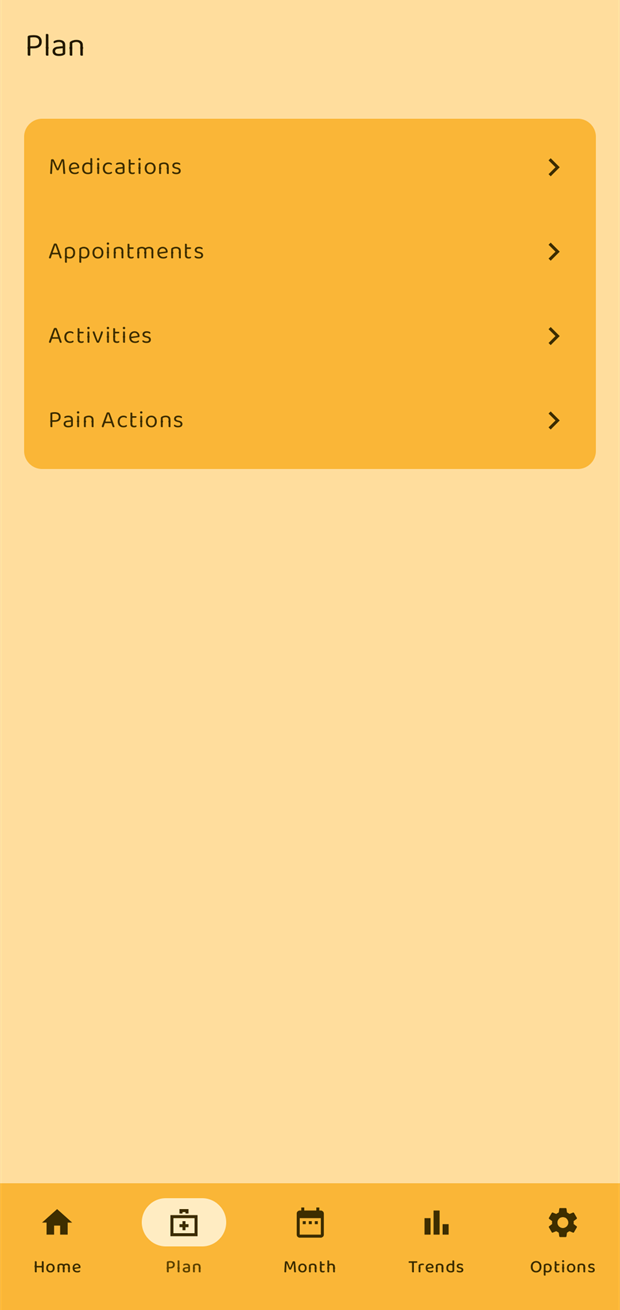
Go to Plan → Medications.
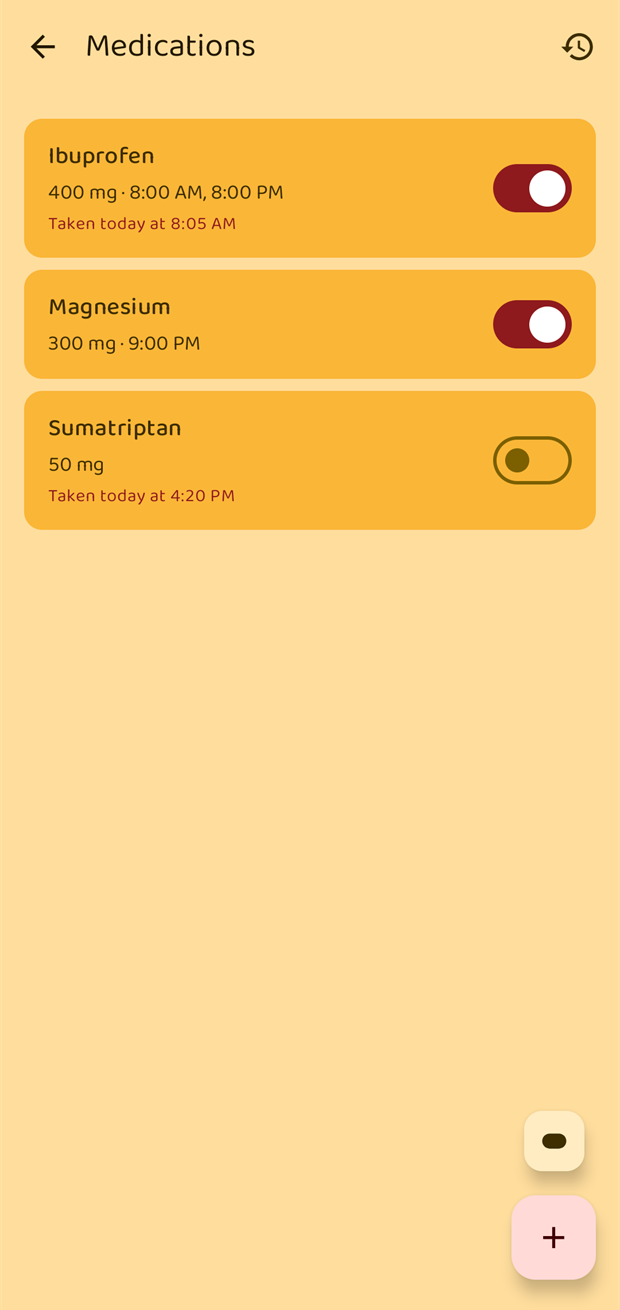
Tap the large + to add one, or tap an existing medication to change it. The smaller pill button just above it is a shortcut to Enter Medication, for when you came here to log an intake rather than to change a setting.
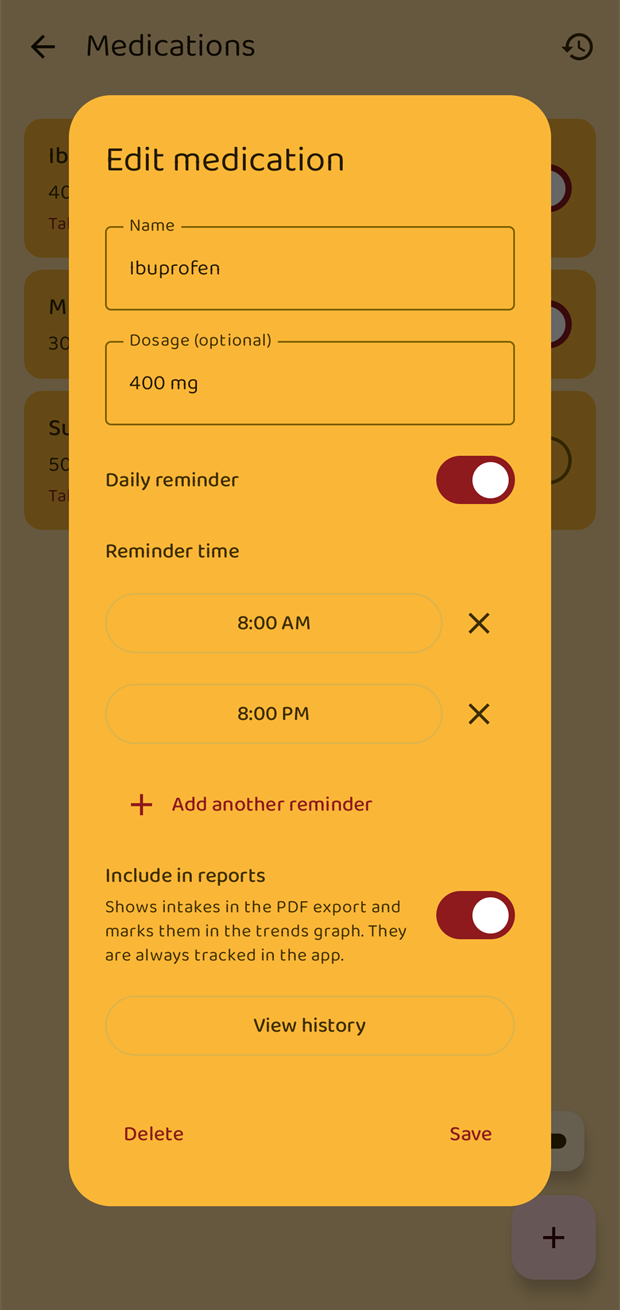
| Field | Notes |
|---|---|
| Name | Required. |
| Dosage | Optional — 400 mg, 2 tablets, whatever you would say out loud. |
| Daily reminder | Off by default. Switch it on to be reminded at fixed times. |
| Reminder time | Tap the time to change it. Add another reminder adds a second, third or fourth time in the same day — up to four. |
| Include in reports | On by default. Controls whether this medication appears in PDF exports and is marked on the trends chart. Intakes are always recorded either way. |
View history at the bottom opens this medication's own intake history.
To delete a medication, long-press its row in the list and choose Delete. That removes its intake history too, and cannot be undone.
A medication with reminders switched off is still perfectly usable — that is how an as-needed rescue medication is normally set up. You just log it when you take it.
Reminders
When a reminder time comes round, Pain Tracker posts a notification:
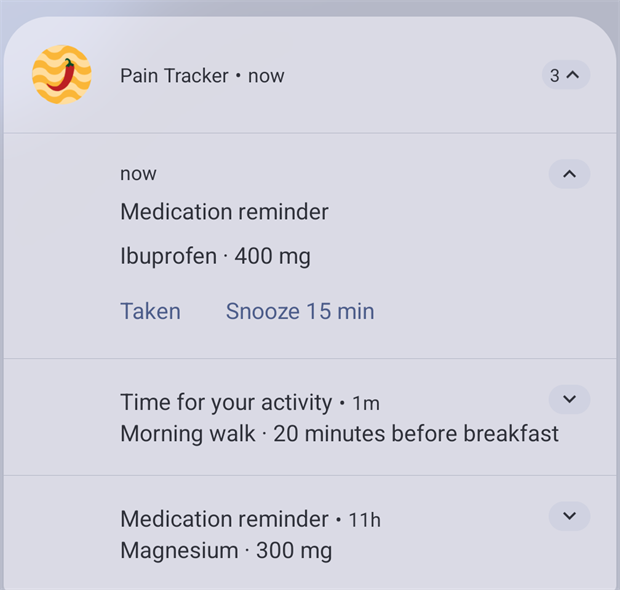
- Taken logs the intake immediately, without opening the app.
- Snooze 15 min asks again in a quarter of an hour.
If an hour goes by and nothing has been logged, a single follow-up notification asks "Did you take your medication?" with the same two buttons. That is the only nagging the app does.
Tapping the notification itself opens a summary page for that medication:
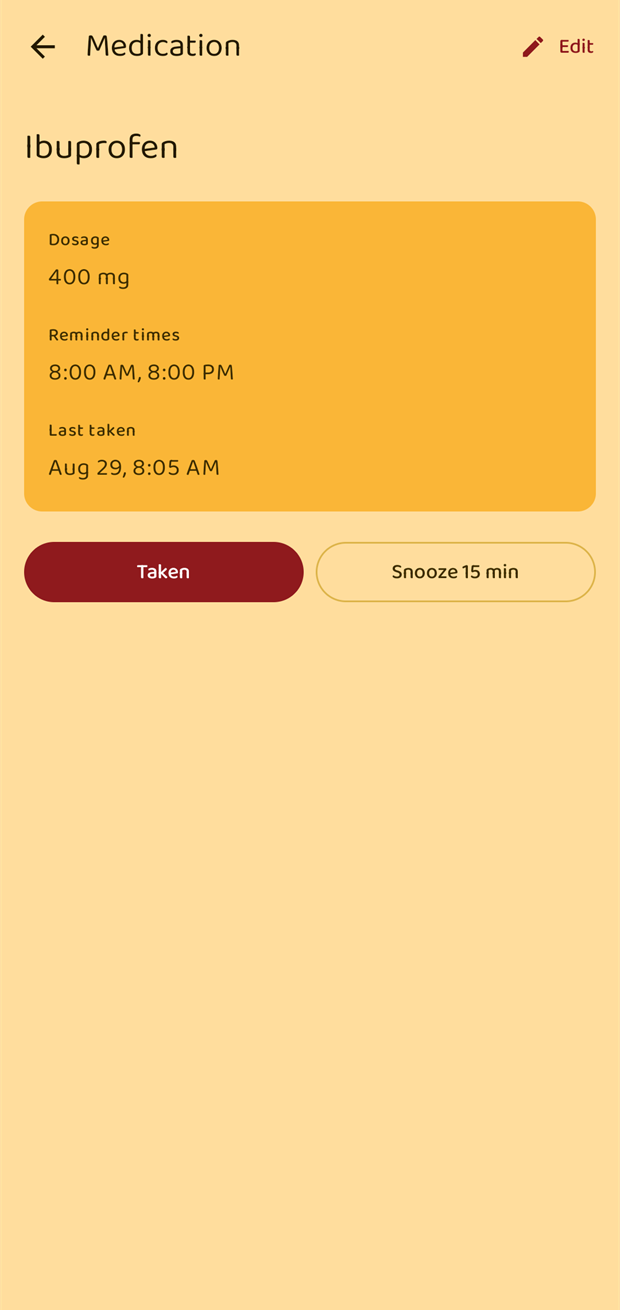
It shows the dosage, the reminder times and when you last took it, with the same Taken and Snooze buttons and an Edit link in the top corner.
Reminders need notification permission. If notifications are switched off for Pain Tracker, the app tells you so the moment you turn a reminder on, and offers to open the Android setting.
Logging an intake
Tap Enter Medication on the Home screen.
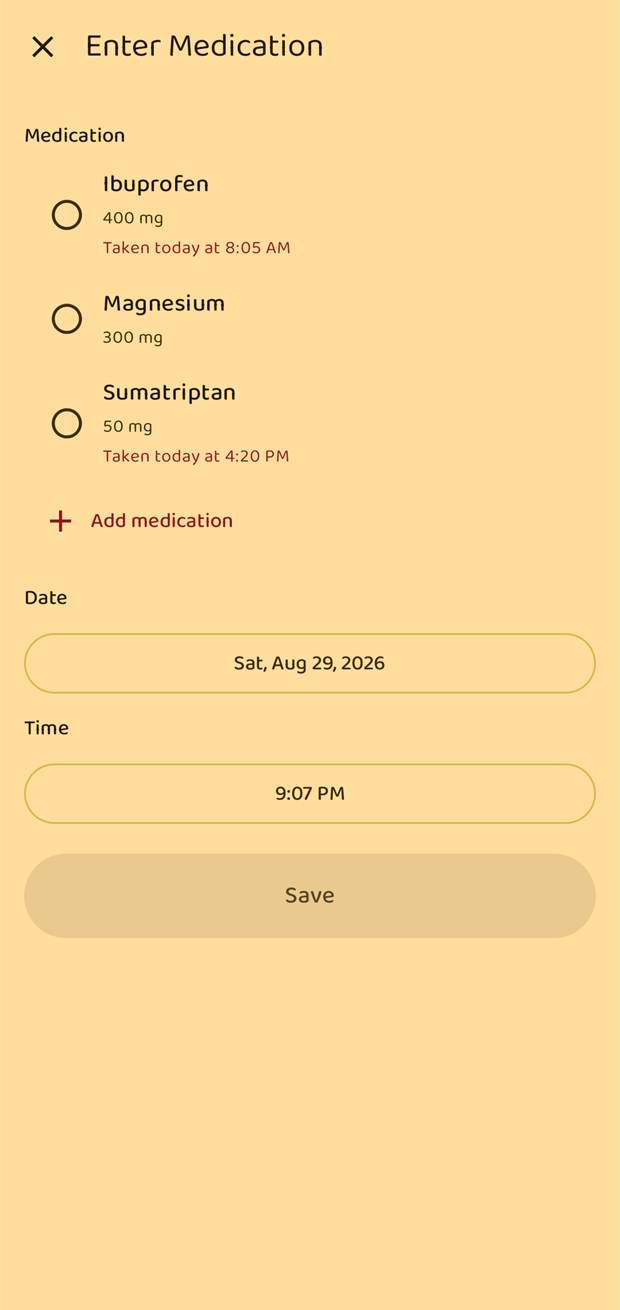
Pick the medication, adjust the date and time if you are logging something from earlier, and tap Save. Each medication shows when you last took it today, so you can see at a glance whether you have already had it.
Add medication on this screen is a shortcut to creating a new one without leaving the flow.
There are three other ways to log an intake:
- Taken on a reminder notification.
- Taken on the Upcoming doses card on the Home screen.
- The Medication button on the home-screen widget or Quick Settings tile.
Intakes appear in the day's list on the Home screen with a tick badge, and can be edited or deleted the same way pain entries can.
Intake history
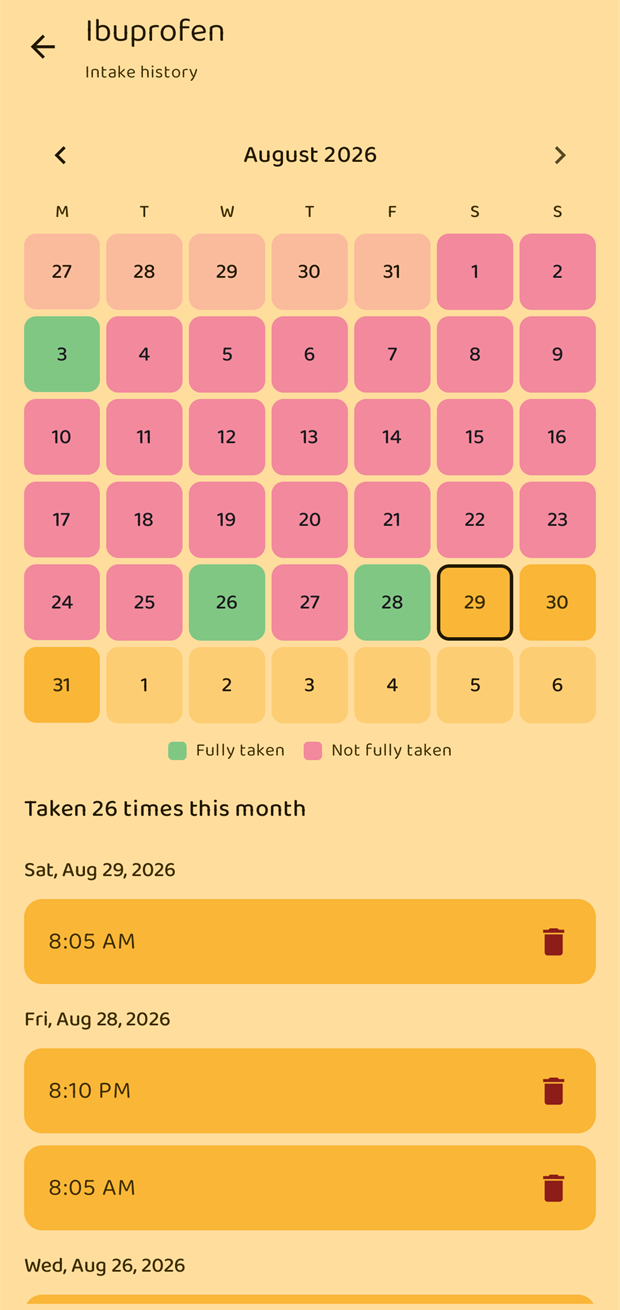
From a medication's edit dialog, tap View history (or long-press the row in the list and choose View history).
The calendar marks every day since the medication was added:
- Fully taken — you logged as many intakes as the reminders expect that day.
- Not fully taken — the day is in the past and you logged fewer.
A medication without reminders counts as taken once you have logged it at all that day. Days before the medication was added are left blank — nothing was expected then.
Underneath, every individual intake is listed with its time.
All medications at once
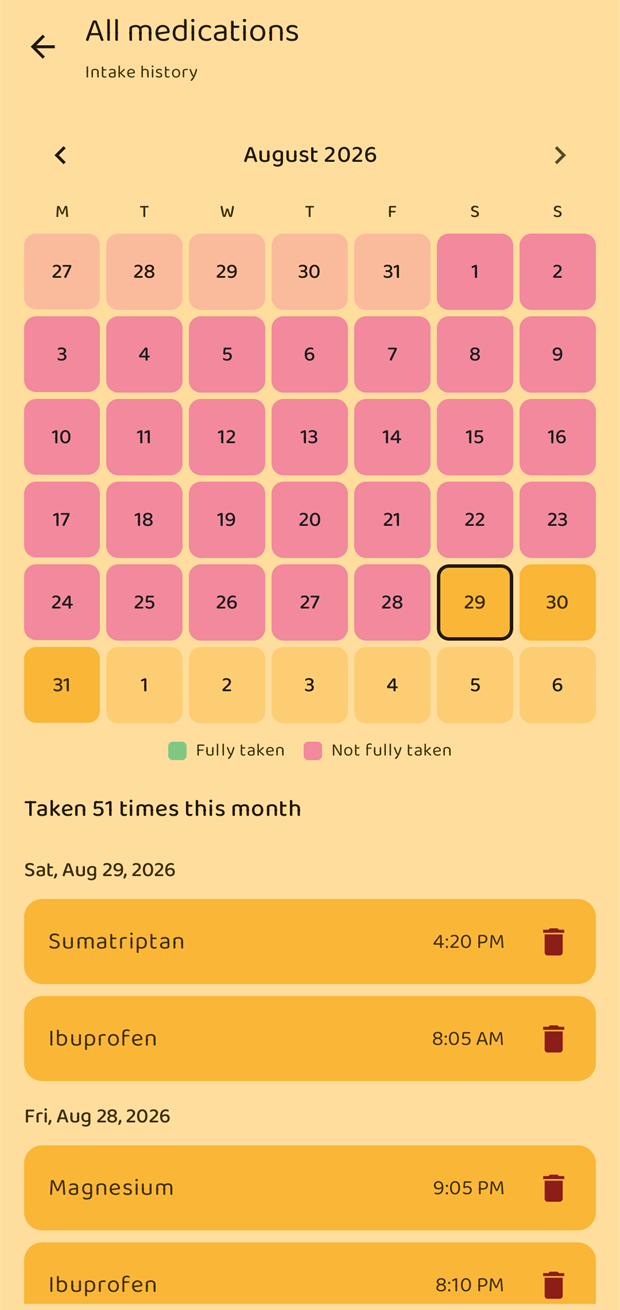
The clock icon in the Medications top bar opens the same history for every medication together, newest first.
Seeing every reminder in one place
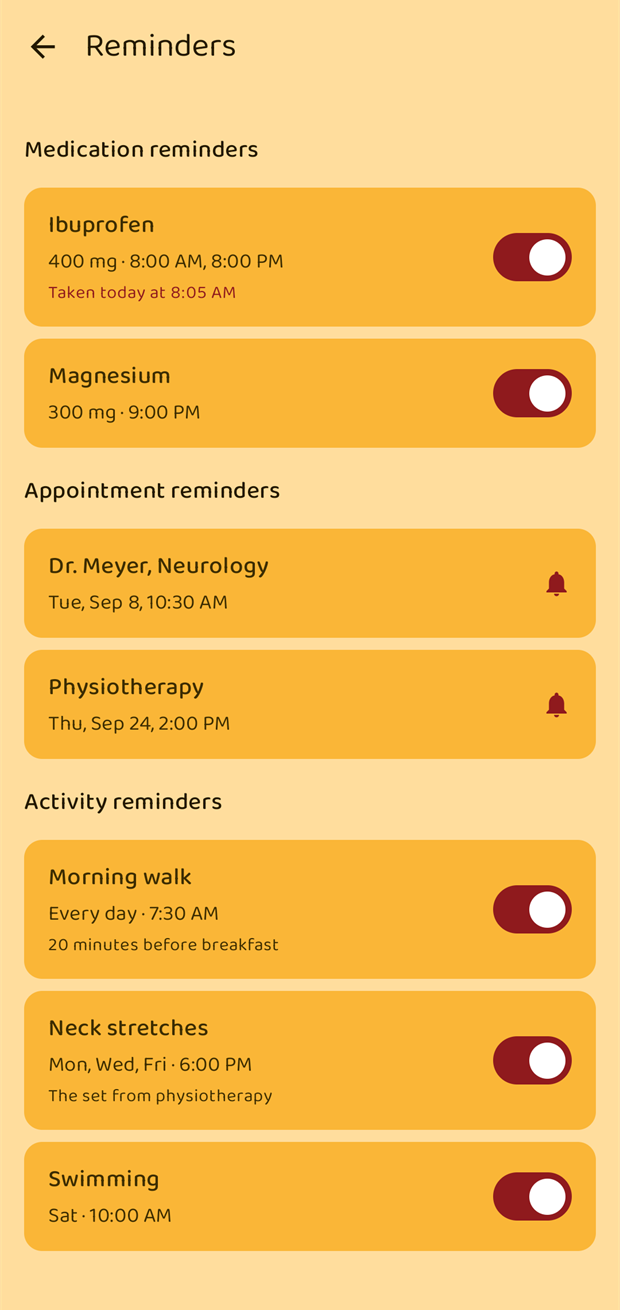
The bell on the Home screen lists every reminder that is currently switched on — medications, appointments and activities — grouped by kind, with their times. It is the quickest way to check that a reminder you set up really is active.
If notifications are blocked for the app, this screen warns you and offers to fix it.