11. Logging without opening the app
On a bad day, opening an app and filling in a form is more than you want to do. Two shortcuts cut it down to two taps.
The home-screen widget
Go to Options → Home screen → Add quick-log widget.
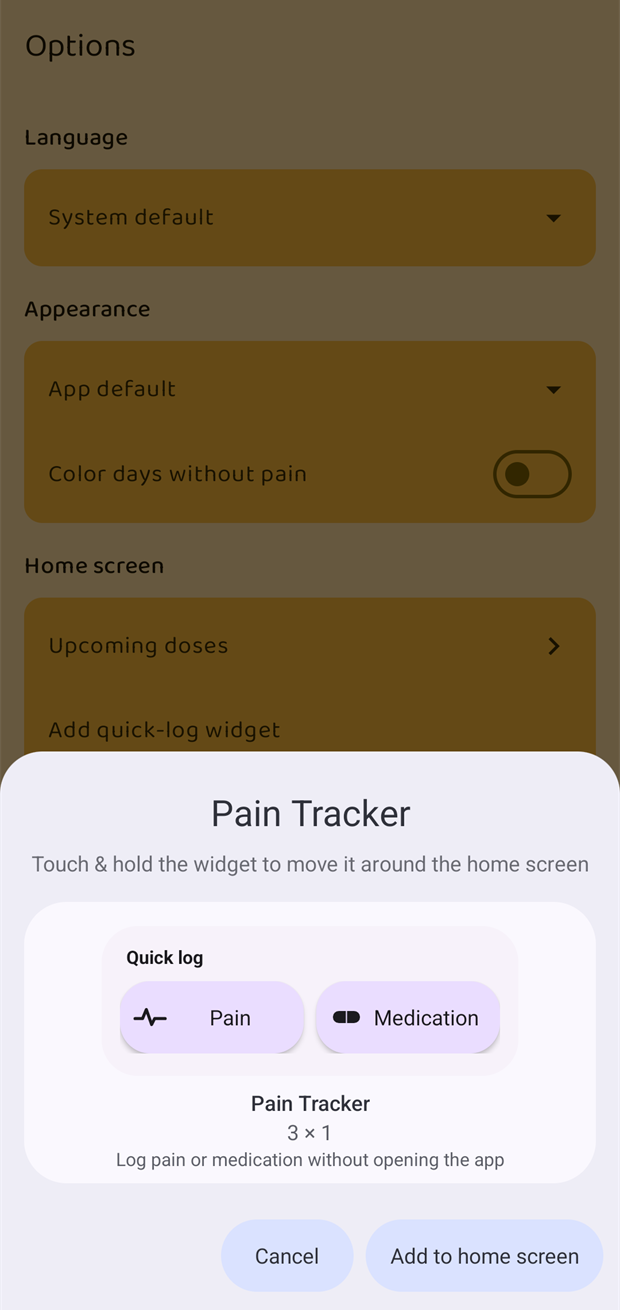
Android shows a preview and asks where to put it. Tap Add to home screen.
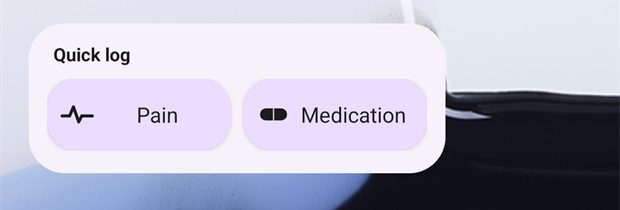
The widget is a 3 × 1 tile with two buttons.
If your launcher does not support adding widgets this way, the app says so — add it by long-pressing an empty spot on your home screen and picking Pain Tracker → Quick log from the widget list instead.
Pain
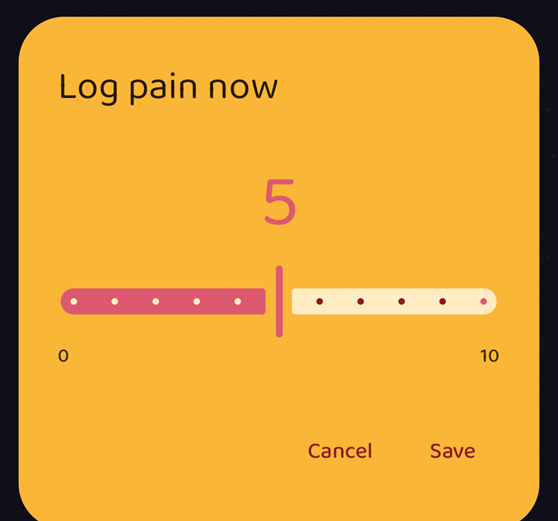
Tap Pain and a small dialog appears over whatever you were doing: a slider from 0 to 10 and Save. The entry is logged at the current hour. That is the whole interaction — the app itself never opens, and a short message confirms what was saved.
The slider starts at 5. If you have already logged something in the current hour, it starts at that level instead and saving updates that entry, keeping its note — so a quick correction after the pain has climbed is one swipe and a tap.
Medication
Tap Medication and you get the same kind of dialog listing your medications. Pick one and the intake is logged, now.
Quick Settings tiles
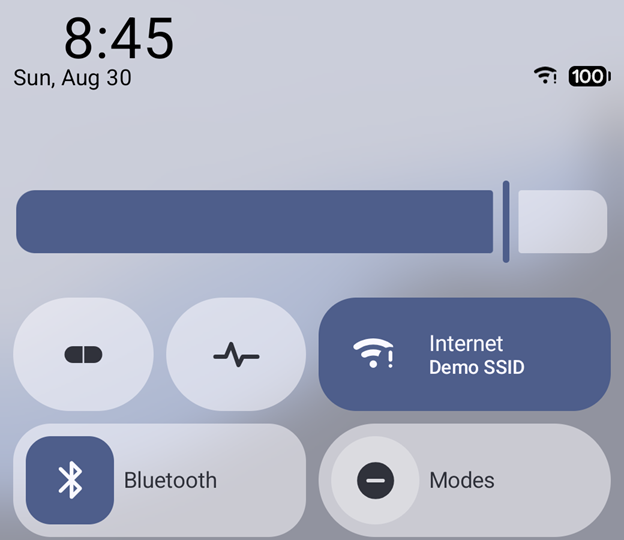
The same two shortcuts exist as Quick Settings tiles — the panel you pull down from the top of the screen, next to Wi-Fi and Bluetooth.
To add them: pull the panel down fully, tap the pencil / edit button, find Log pain and Log medication in the list of available tiles and drag them up into the panel.
They behave exactly like the widget buttons.
When a quick entry is not enough
Anything logged this way is a plain entry with just a level (or just a medication) and no note, quality or trigger. You can fill in the rest later — tap the entry on the Home screen and the full form opens with the level already set.